Change the menu background
Written for version 3.0. Some labels may have changed since.
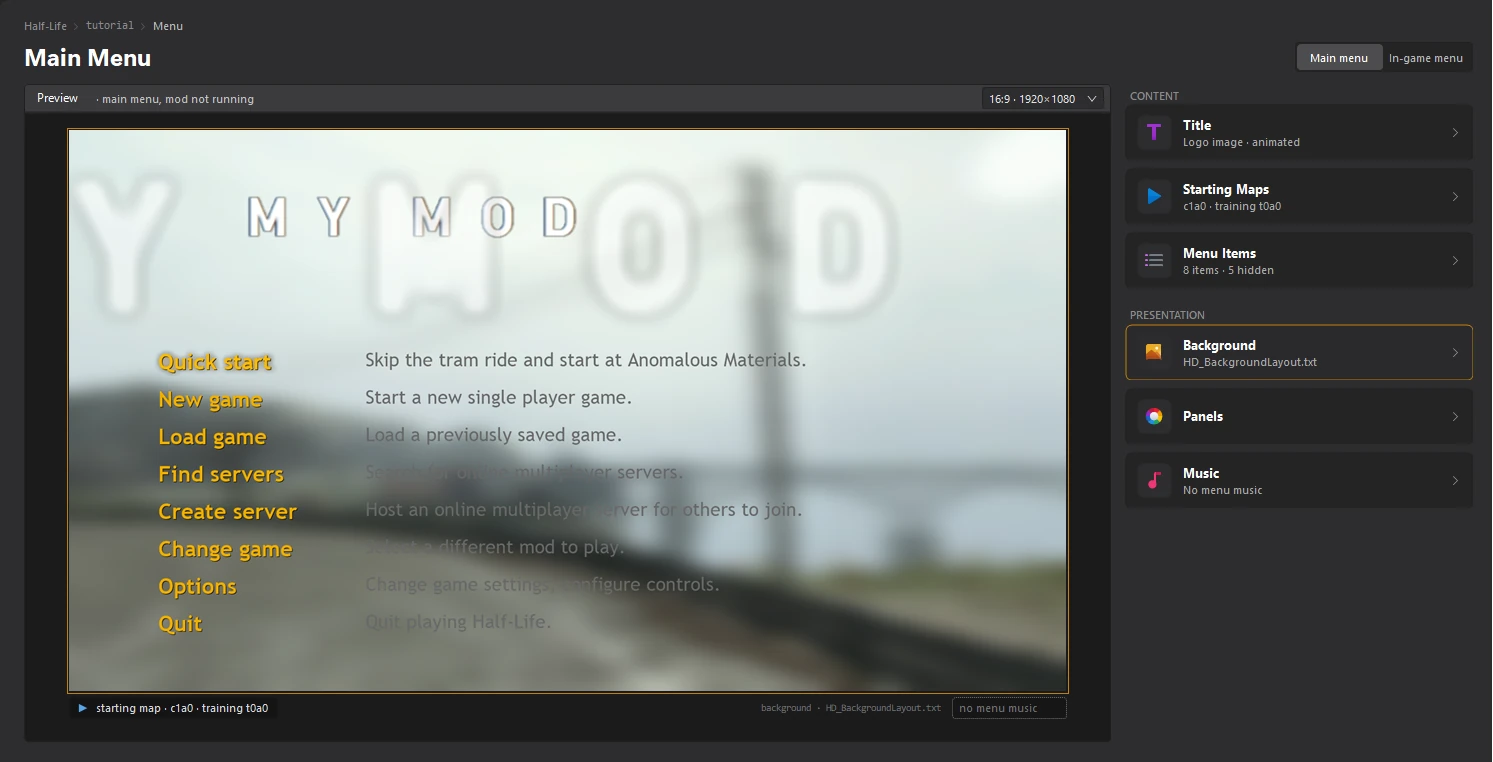
The background is the picture behind your main menu. You import it in the Background editor, which shows it under your logo and menu items.
1. Open the Background editor
Open the Menu dashboard and click the Background card.
2. Import your picture
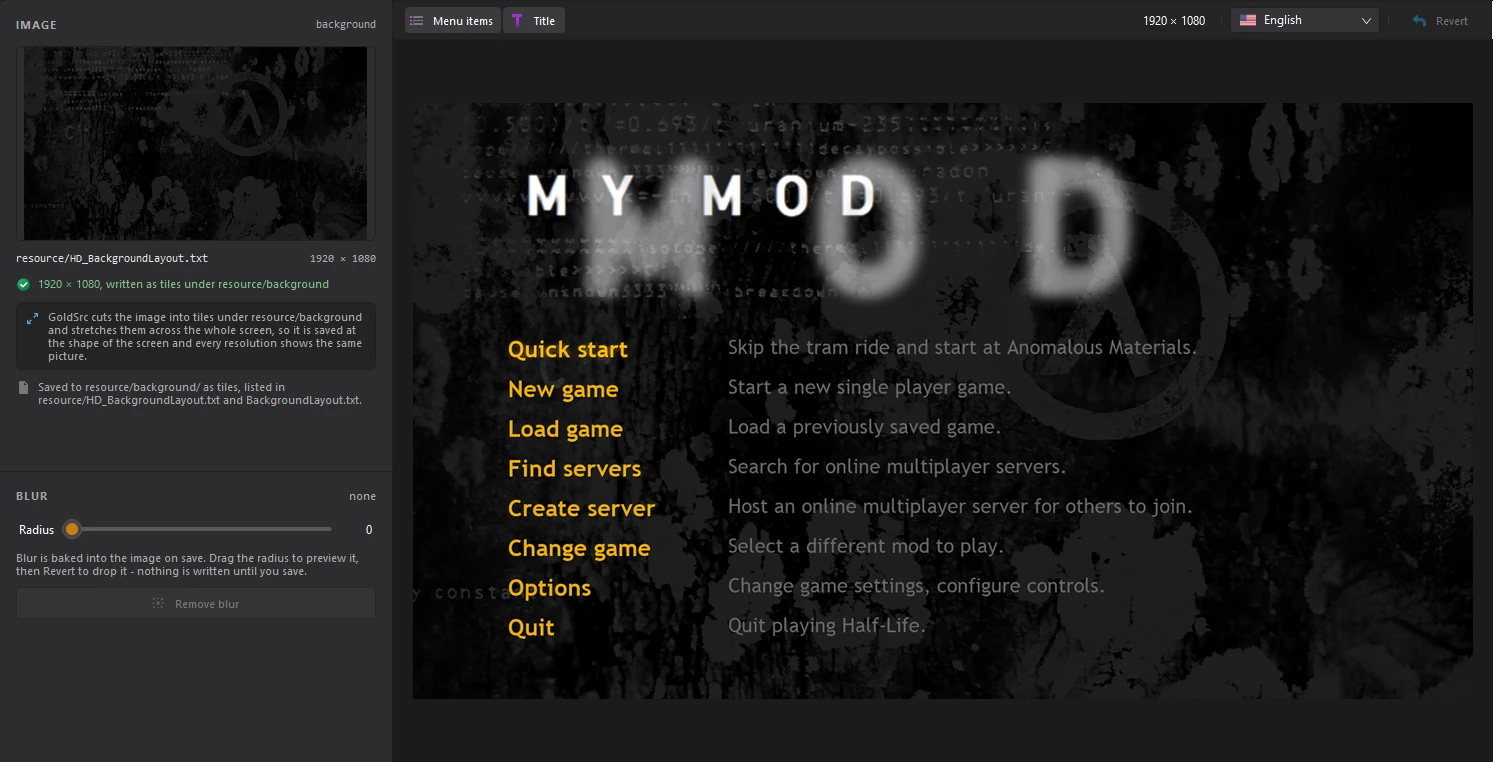
Click the picture under IMAGE and choose Import... in the menu that opens. You can also drop a picture on it, or paste one.
Half-Life stretches the background across the whole screen, so the picture is used at 16:9. If yours has another shape, the tool asks you which part of it to keep.
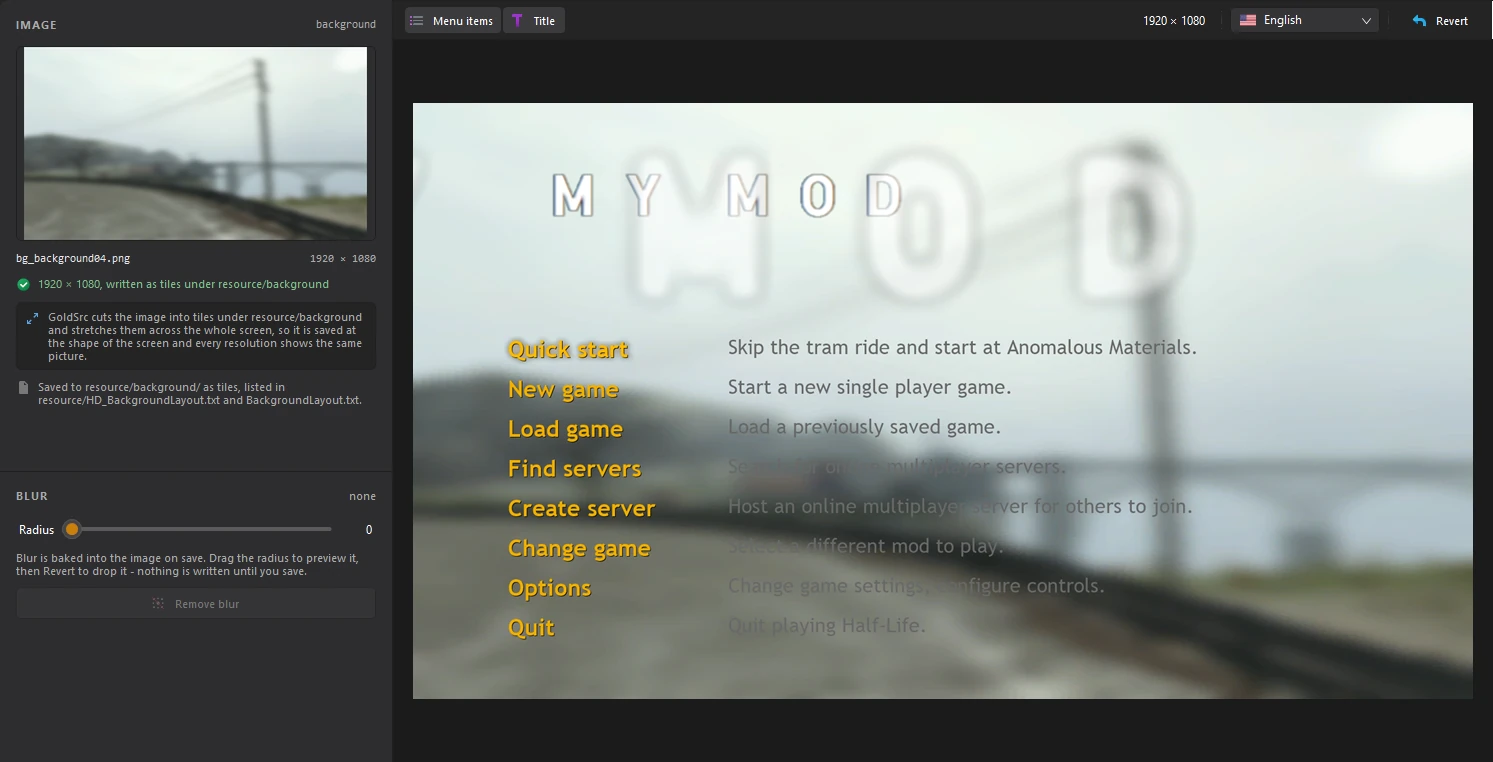
The lines under the picture say how it is saved: cut into tiles under resource/background/ and listed in resource/HD_BackgroundLayout.txt and BackgroundLayout.txt.
3. Blur it (optional)
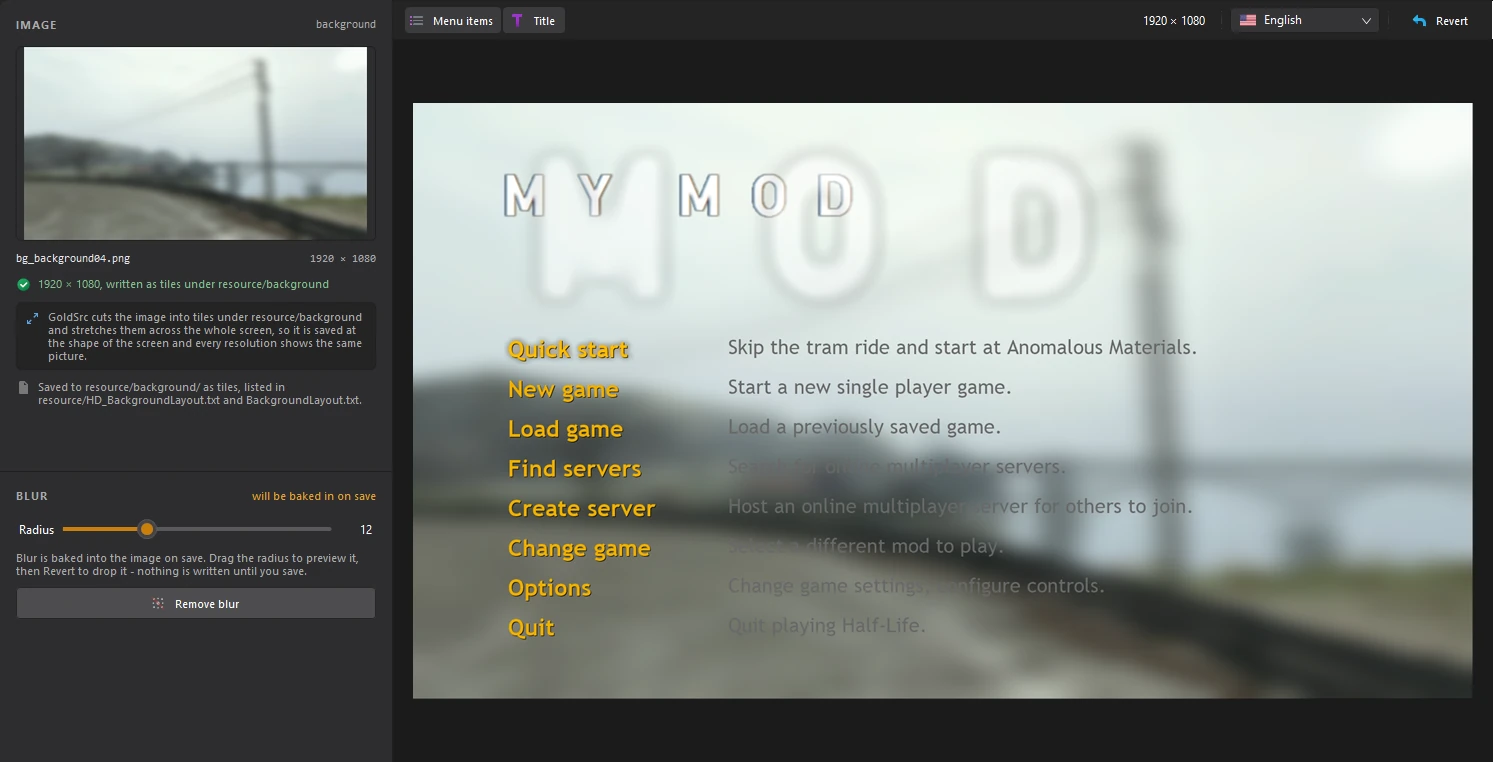
A blurred background keeps the menu readable. Drag Radius under BLUR: the preview shows the blur straight away, and it is baked into the picture when you save. Click Remove blur or Revert to drop it before then.
4. Save
Click File > Save or press Ctrl+S. The Menu dashboard shows your new background.