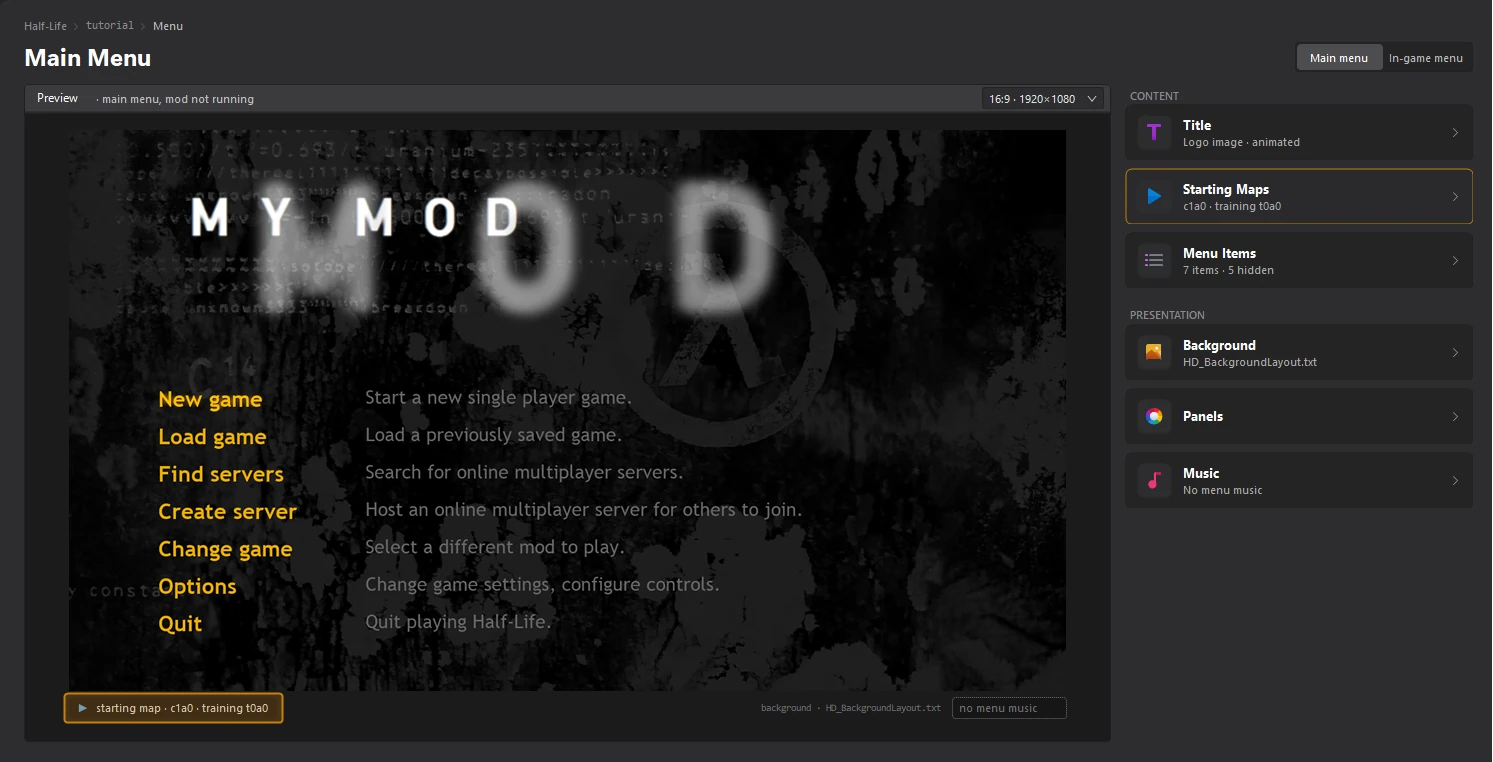
Set the starting maps
Written for version 3.0. Some labels may have changed since.
On this page
In Half-Life, New game loads one map and Hazard Course another. Two keys in liblist.gam decide which: startmap and trainmap. A misspelled map name makes New Game silently do nothing, so the Starting Maps editor shows you each map from where the player spawns.
1. Open the Starting Maps editor
Open the Menu dashboard and click the Starting Maps card.
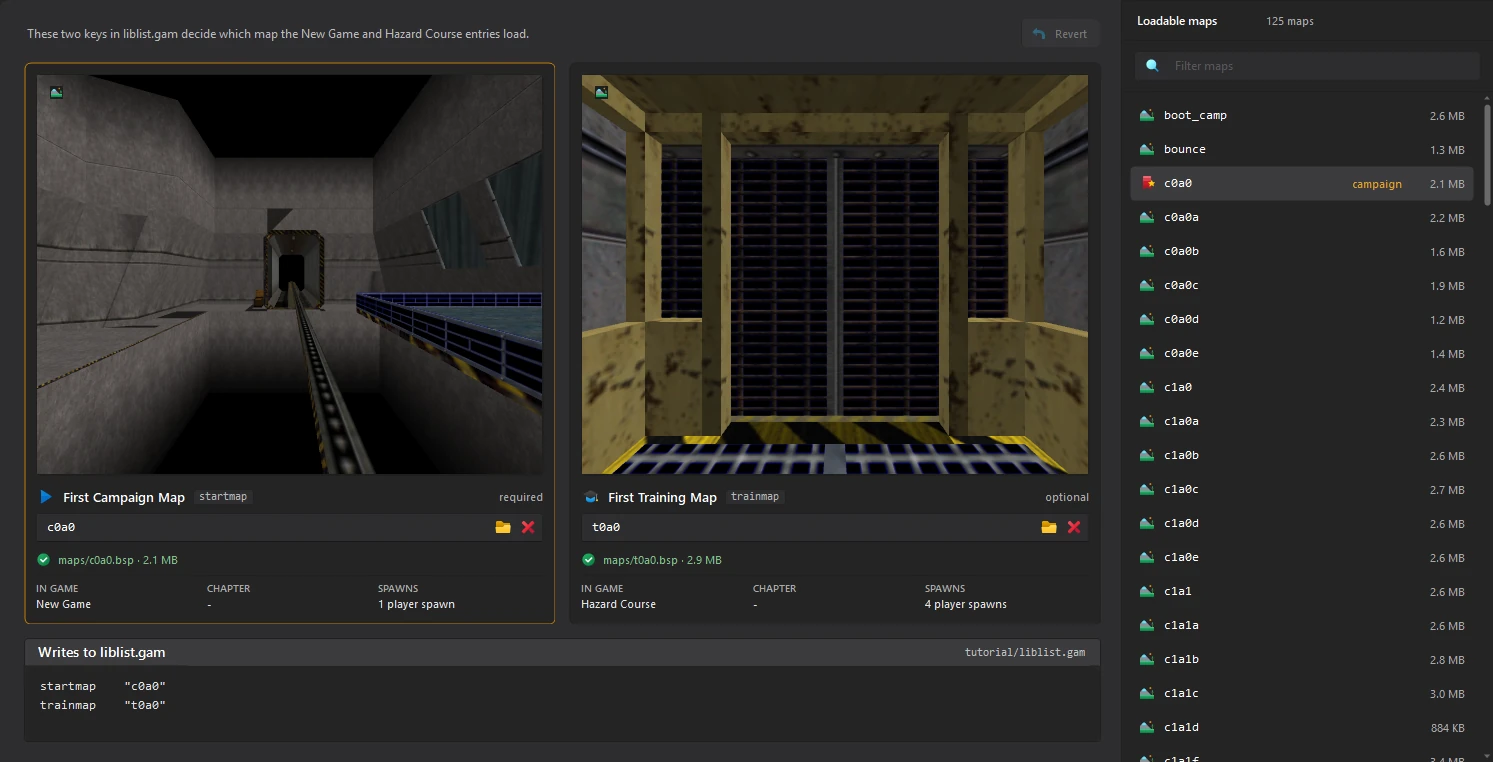
There is one card per key: First Campaign Map (startmap, required) and First Training Map (trainmap, optional). Each card shows the map from the player's start, the file it found, the menu entry that loads it in game, and how many player spawns it has. Your mod's maps are listed on the right, under Loadable maps.
2. Pick the first campaign map
Click the First Campaign Map card, so it is outlined, then click a map in Loadable maps. You can also type the map's name in the card, or click the folder button to browse.
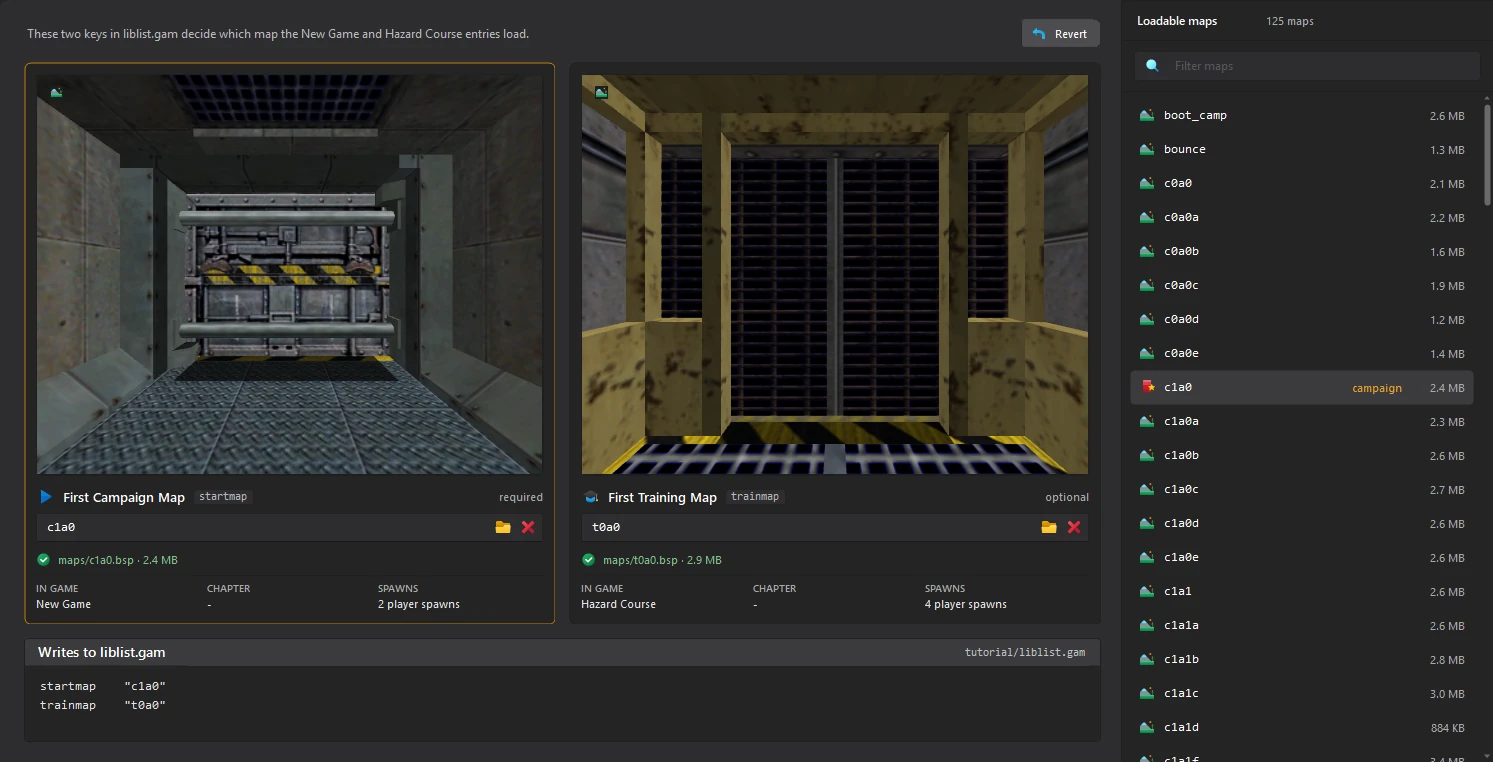
maps folder, and a wrong name makes New Game do nothing.3. Pick the training map (optional)
Click the First Training Map card and pick the map of your Hazard Course the same way. Click the red × on a card to clear it.
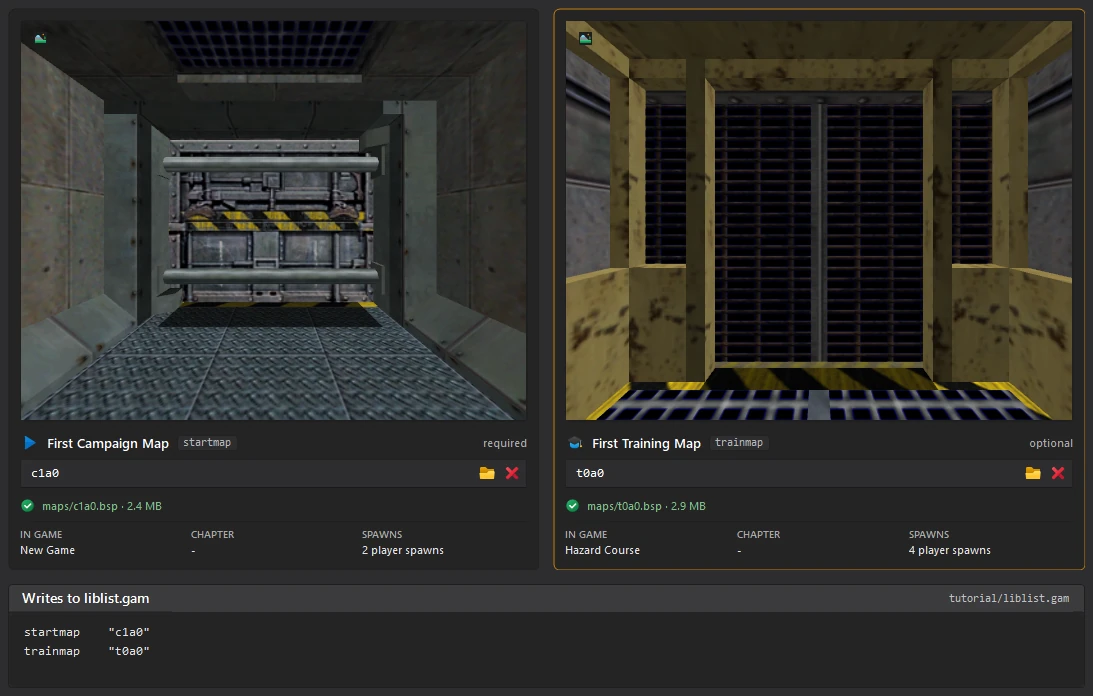
Writes to liblist.gam, at the bottom, shows the lines the tool saves.
4. Save
Click File > Save or press Ctrl+S. The Starting Maps card on the Menu dashboard shows both maps.