
Change the menu background
Written for version 3.0. Some labels may have changed since.
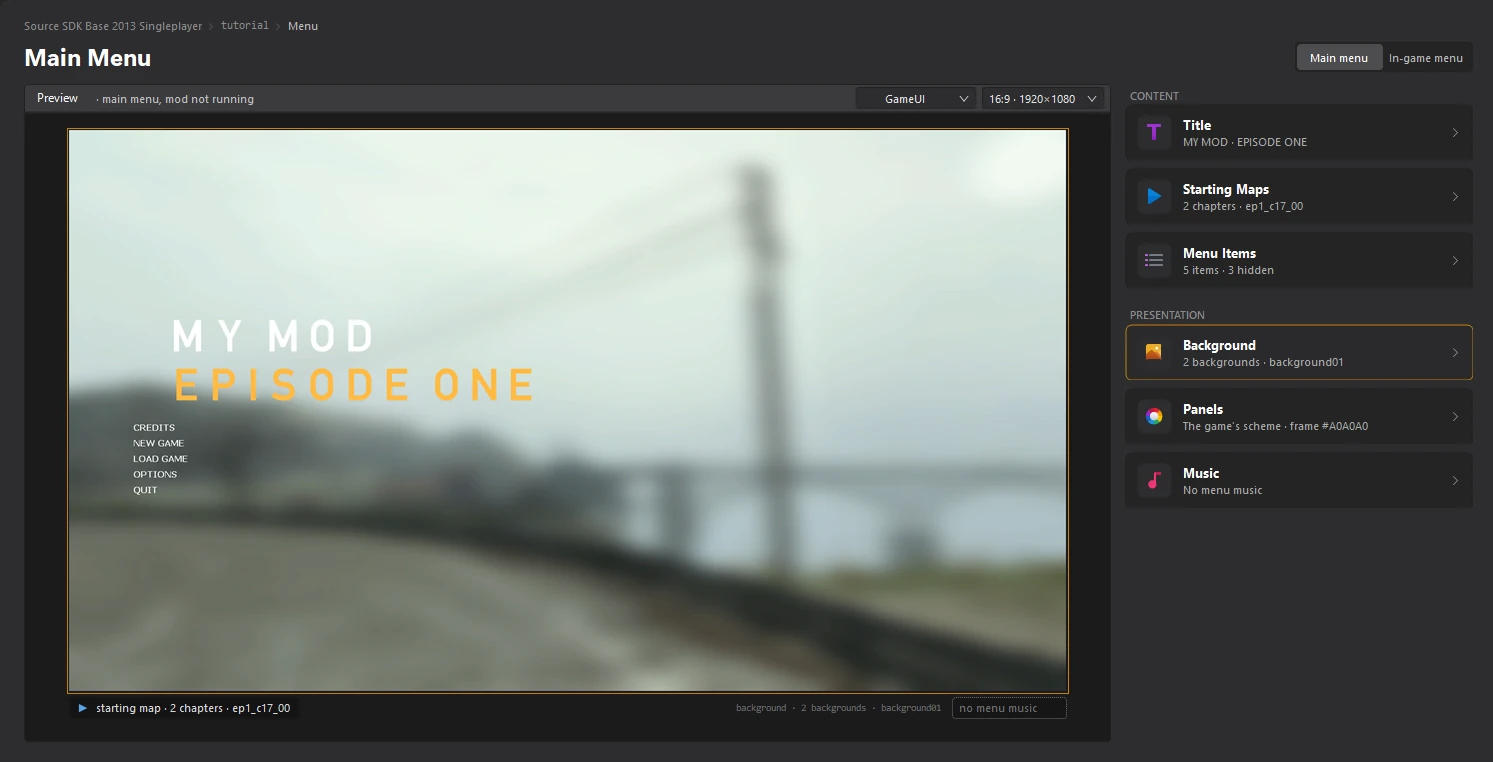
The background is the picture behind your main menu. Source mods can have several: the main one, and one per chapter, shown once the player reaches that chapter. You import them in the Background editor, which shows each one under your title and menu items.
1. Open the Background editor
Open the Menu dashboard and click the Background card.
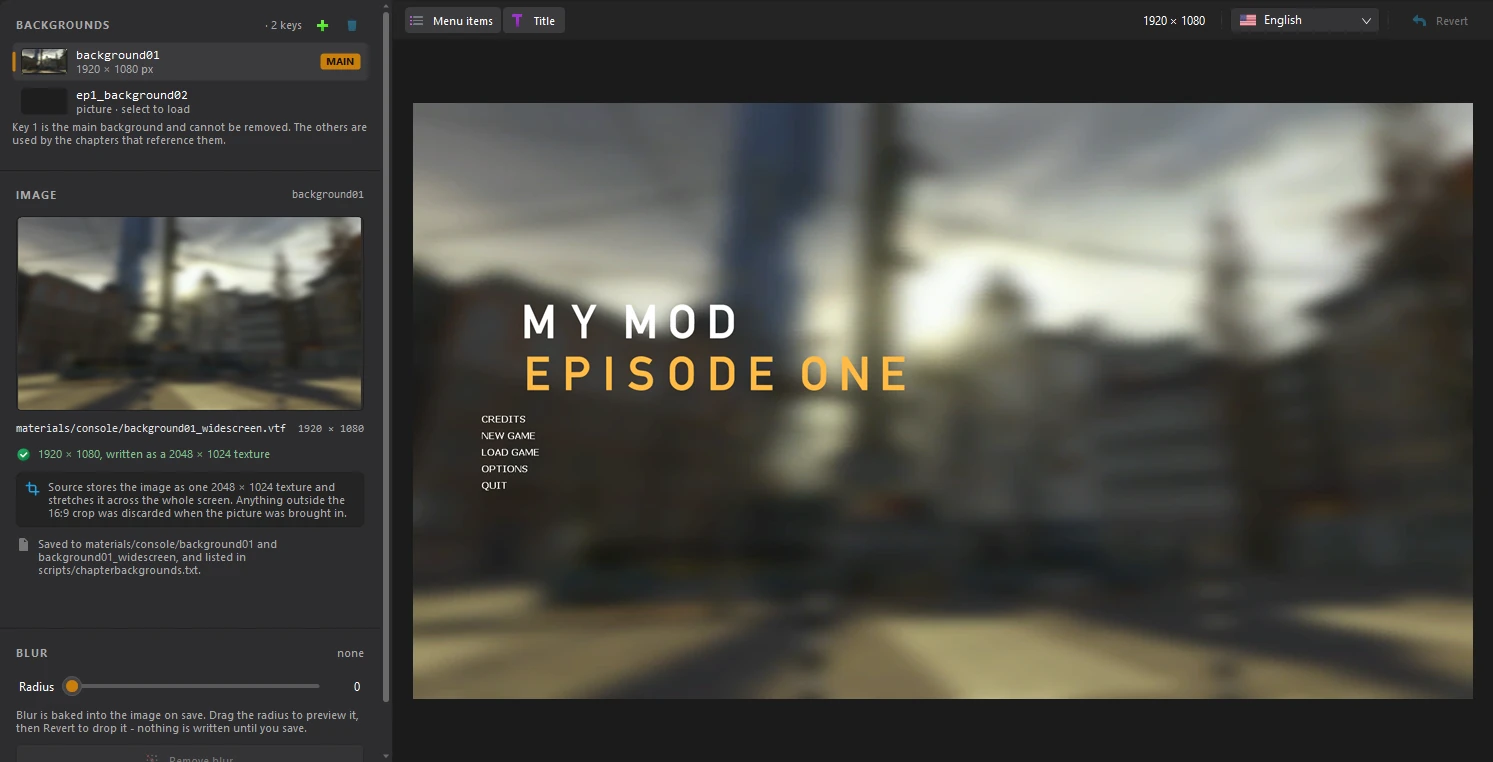
BACKGROUNDS lists your mod's backgrounds. Key 1, marked MAIN, is the one the menu shows at first and cannot be removed. The others belong to chapters: you add them with the + button here, or by giving a chapter a background in the Starting Maps editor.
2. Import your picture
Select the background to change, then click the picture under IMAGE and choose Import.... You can also drop a picture on it, or paste one.
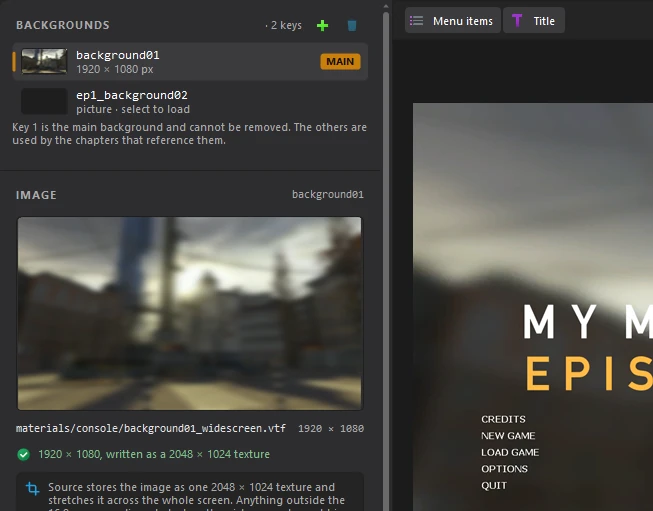
The menu fills the whole screen, so the picture is used at 16:9. If yours has another shape, the tool asks you which part of it to keep.
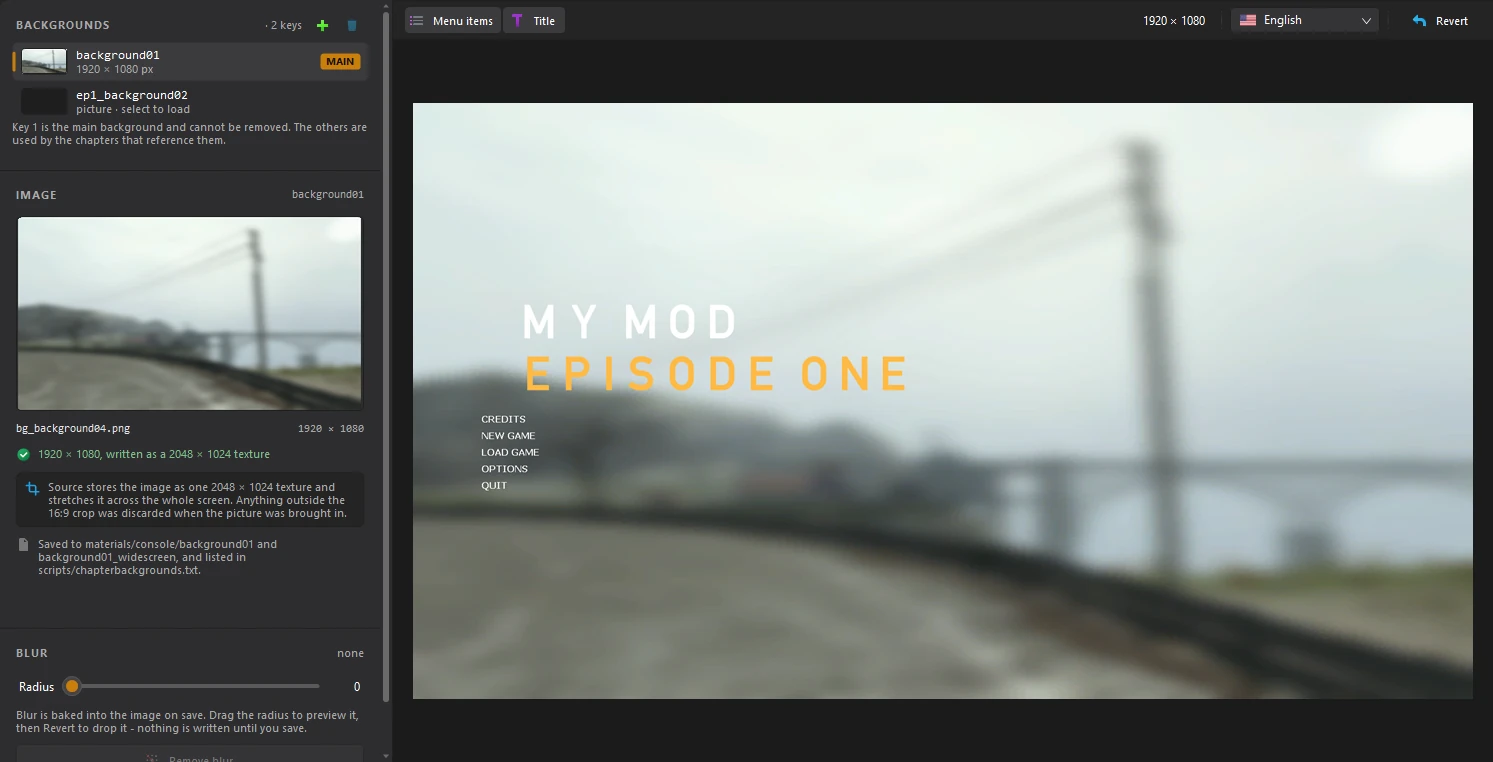
The lines under the picture say how it is saved: Source keeps it as one 2048×1024 texture, materials/console/background01 and its _widescreen copy, listed in scripts/chapterbackgrounds.txt.
3. Blur it (optional)
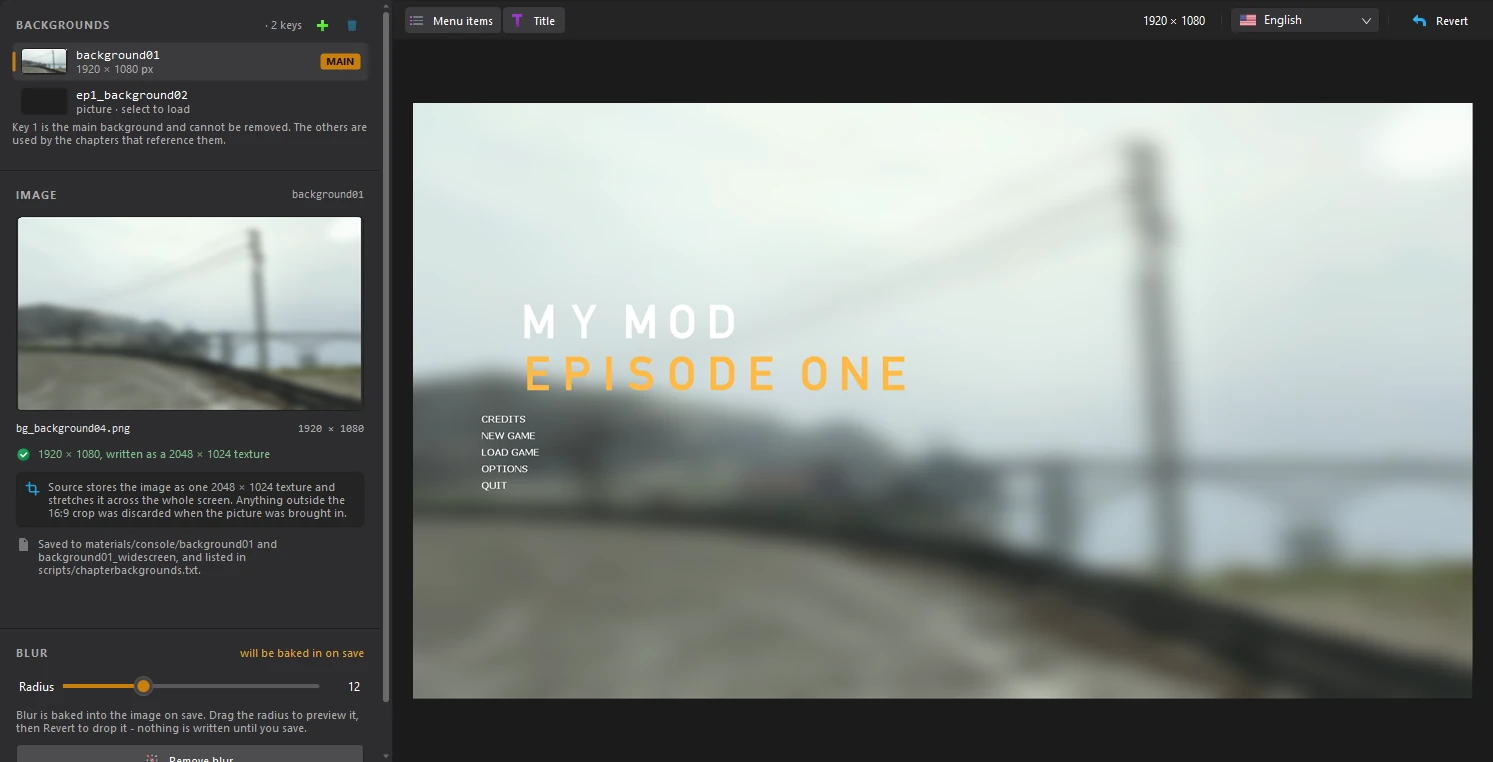
A blurred background keeps the menu readable. Drag Radius under BLUR: the preview shows the blur straight away, and it is baked into the picture when you save. Click Remove blur or Revert to drop it before then.
4. Save
Click File > Save or press Ctrl+S. The Menu dashboard shows your new background.
background01.bsp, the game loads that map behind the menu, and your picture only shows while it loads. The editor warns you when that is the case.