Add chapters
Written for version 3.0. Some labels may have changed since.
On this page
Chapters are what the player picks in the New Game dialog. Each one starts a map, shows a thumbnail, and can change the background of the main menu once the player reaches it. A new mod has no chapters of its own: you add them in the Starting Maps editor.
1. Open the Starting Maps editor
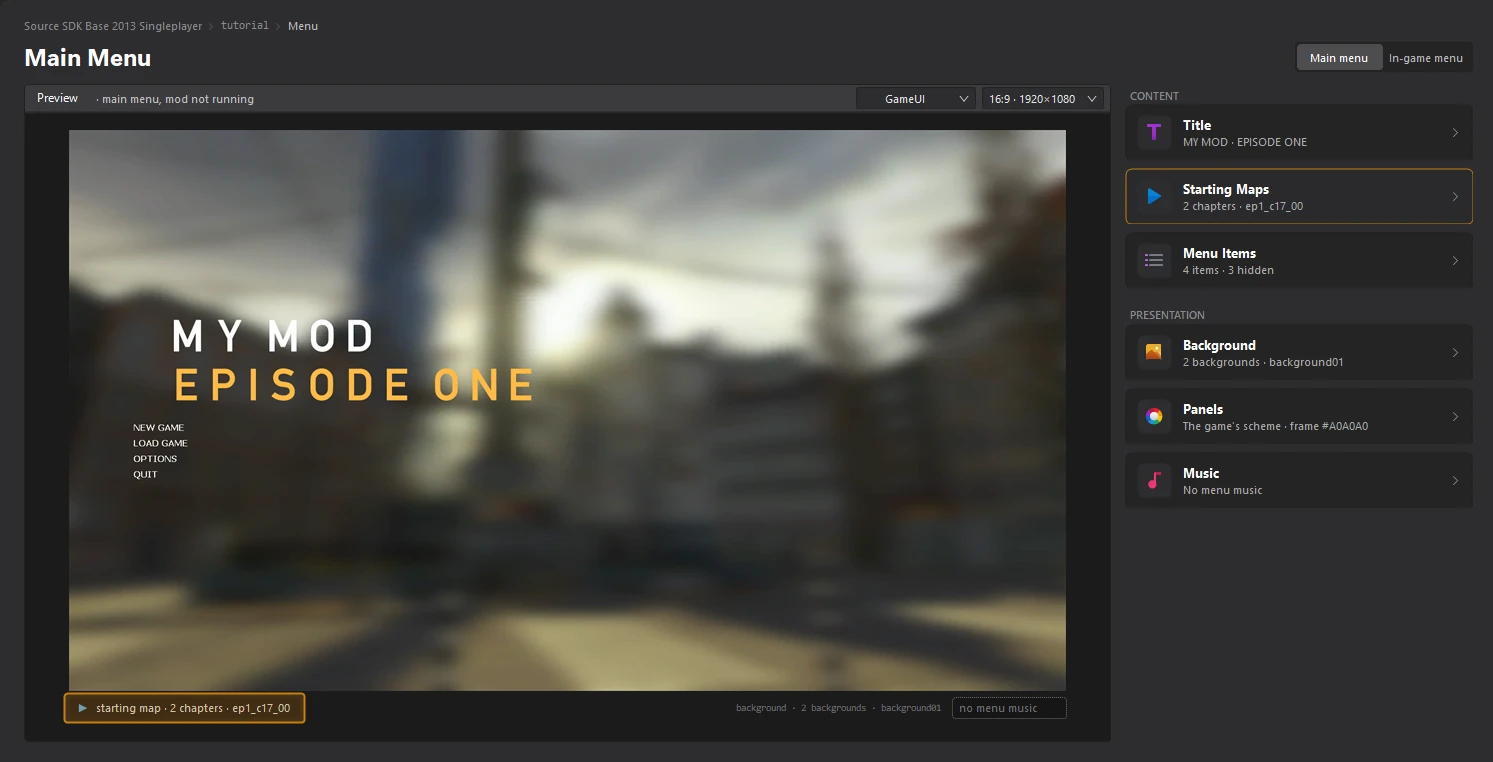
Open the Menu dashboard and click the Starting Maps card. The card says how many chapters your mod has, and the tag under the preview names the map New Game starts.
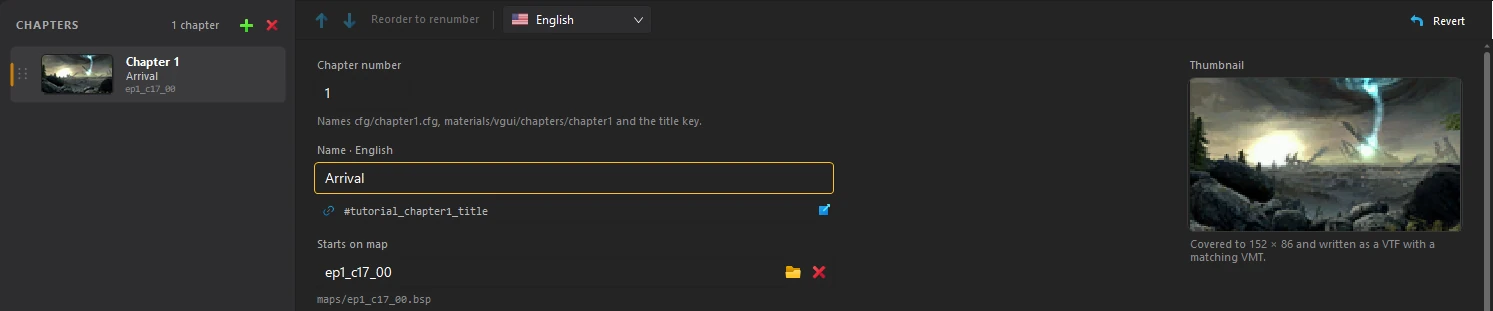
Your chapters are listed on the left, under CHAPTERS. The settings of the selected one are on the right.
2. Add a chapter
Click the + button next to CHAPTERS. The new chapter gets the next number: chapter 1 is the first one in the New Game dialog.

The Chapter number names the files the chapter is saved in: cfg/chapter1.cfg, the thumbnail materials/vgui/chapters/chapter1 and the key of its name.
3. Name it and pick its map
Type the chapter's name in Name. It is saved as a translatable text, in the language picked at the top of the editor: the line under the field shows its key, and you can translate it later in the Texts editor.
In Starts on map, type the name of the map the chapter loads, or click the folder button to pick one from your mod's maps folder.
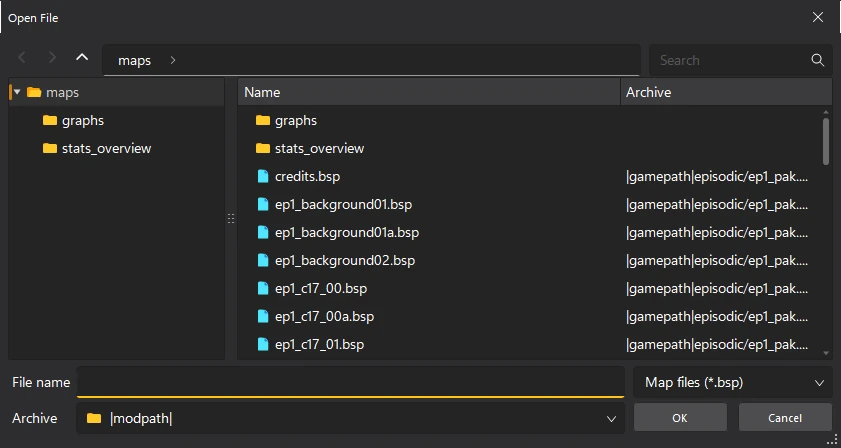

maps/ep1_c17_00.bsp. If it says the map is not in your mod, check the spelling: New Game would fail to load it.4. Add a thumbnail
Click the Thumbnail box and import a picture, or drop one on it. The tool covers it to 152×86, the size the New Game dialog draws it at, and saves it as a VTF with its VMT.
5. Set a background (optional)
Once the player reaches a chapter, the main menu can show that chapter's background instead of the first one.
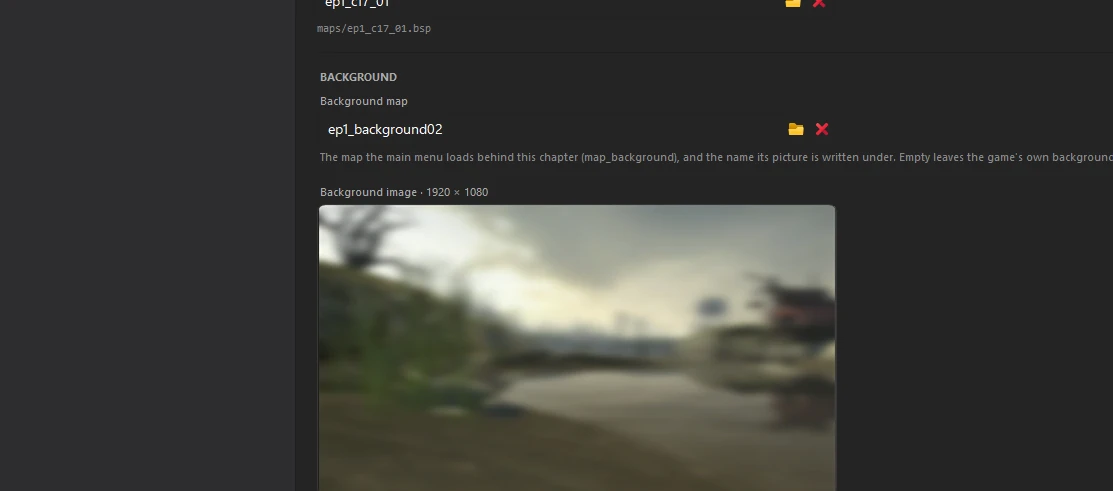
- Background map is the map the menu loads behind it, and the name its picture is saved under. Leave it empty to keep the game's own background.
- Background image is the picture the menu shows while that map loads. Click the box to import a picture; it is covered to 1920×1080.
6. Add the other chapters
Repeat steps 2 to 5 for each chapter. To change their order, select one and use the arrows at the top: the chapters are numbered again in their new order.

7. Save the chapters
Click File > Save or press Ctrl+S. Back on the Menu dashboard, the Starting Maps card shows how many chapters you have and the first map.