Edit the menu items
Written for version 3.0. Some labels may have changed since.
On this page
The menu items are the entries of your main menu: NEW GAME, LOAD GAME, OPTIONS, QUIT and so on. In the Menu Items editor you add your own, choose what each one does and in which menu it shows, and change how they look.
1. Open the Menu Items editor
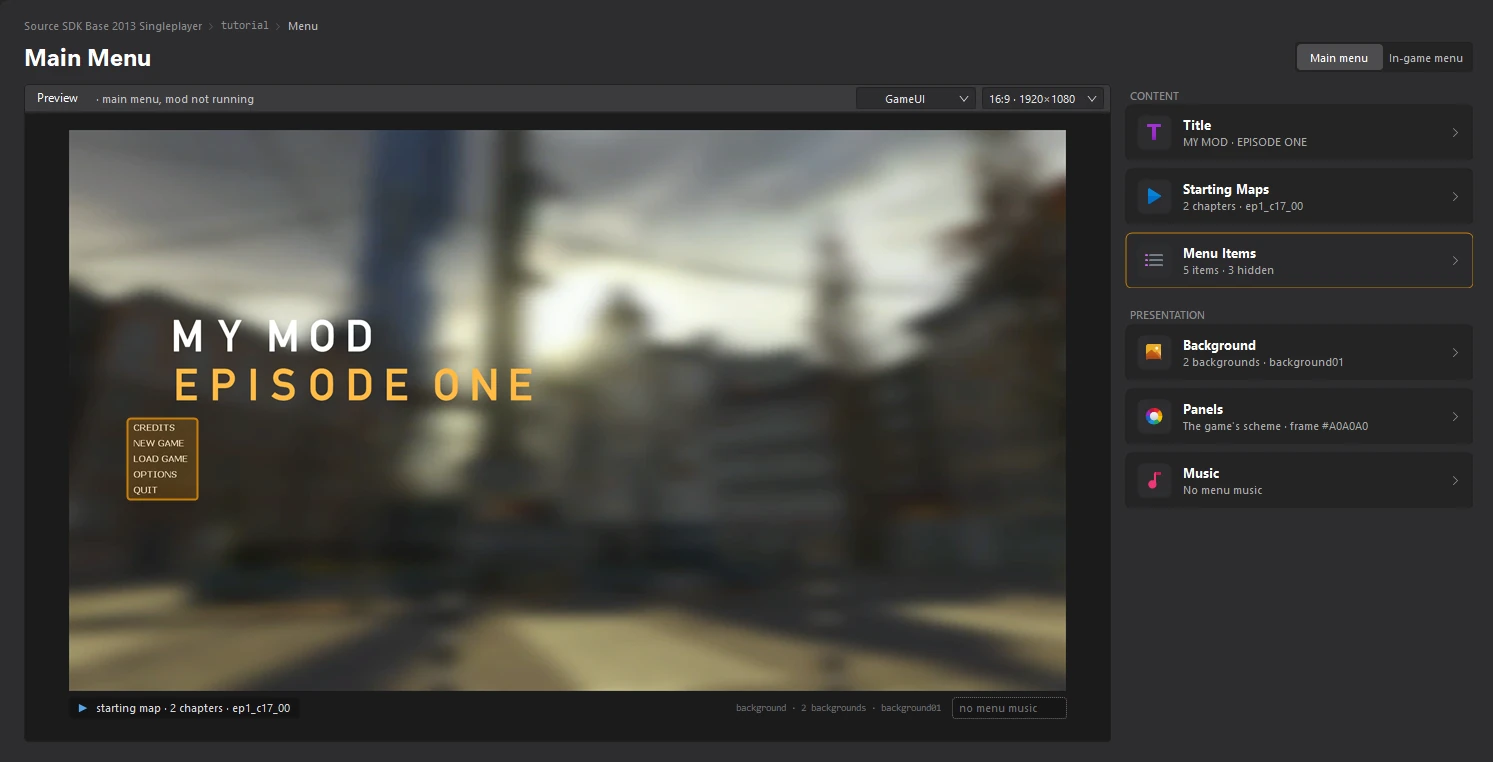
Open the Menu dashboard and click the Menu Items card. It says how many items show on the main menu and how many are hidden there.
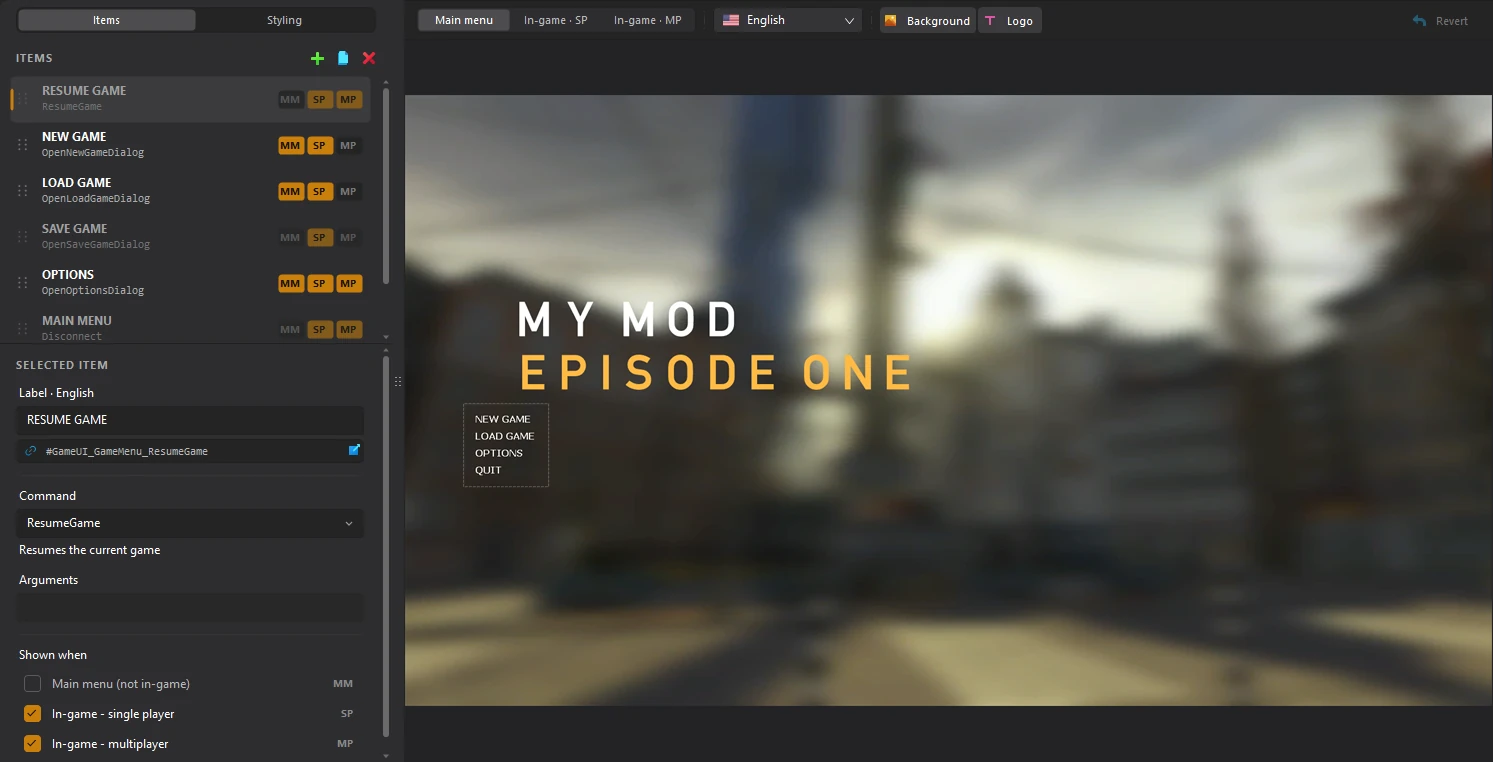
The list on the left holds every item, in the order the menu shows them. The tags on each row say where it shows: MM on the main menu, SP during a single-player game and MP during a multiplayer game. Items that the menu in the preview hides are dimmed.
2. Add an item
Select the item yours should come after, and click the + button next to ITEMS. The copy button next to it duplicates the selected item, and × deletes it. To move an item, drag it by the handle on the left of its row.
3. Name it
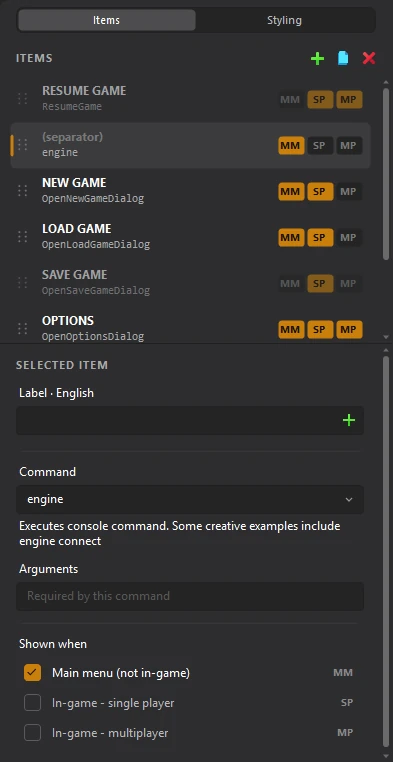
Type the text of the item in Label. The field shows the text in the language picked at the top of the preview.
#GameUI_GameMenu_NewGame, shown under the label. Editing their text changes that translation, in the language picked above the preview. Click the key to edit it.4. Choose what it does
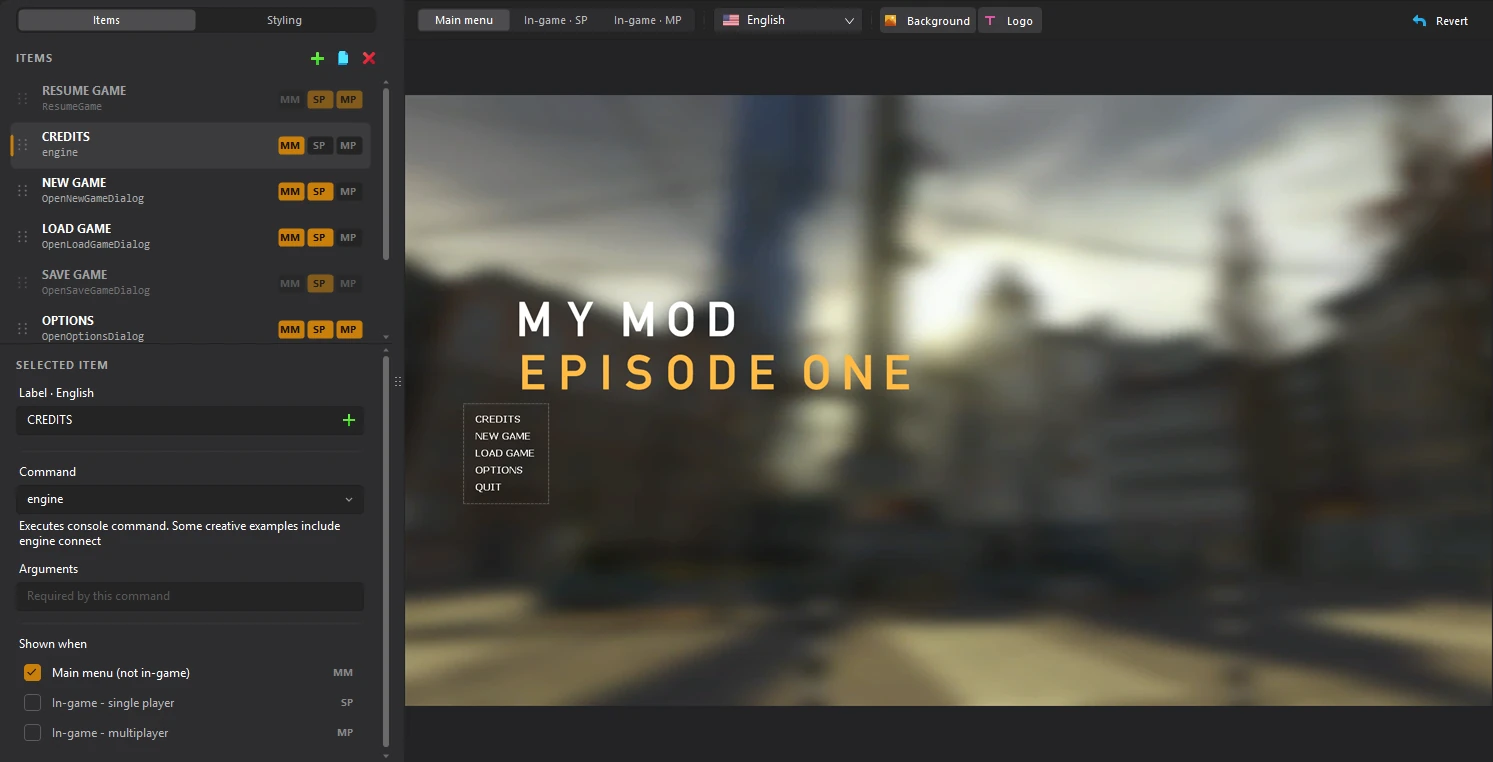
Click Command to open the list of commands. Each one says what it does. Type to search the list, then click the one you want.
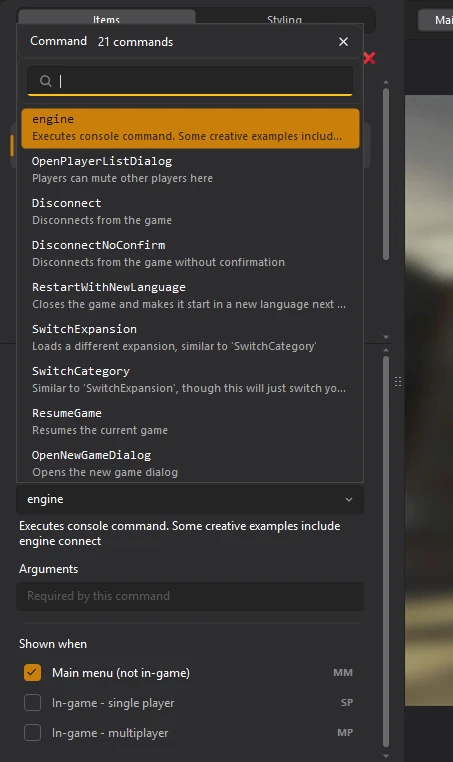
Some commands take Arguments. The engine command runs any console command you type there.
map credits loads the credits map.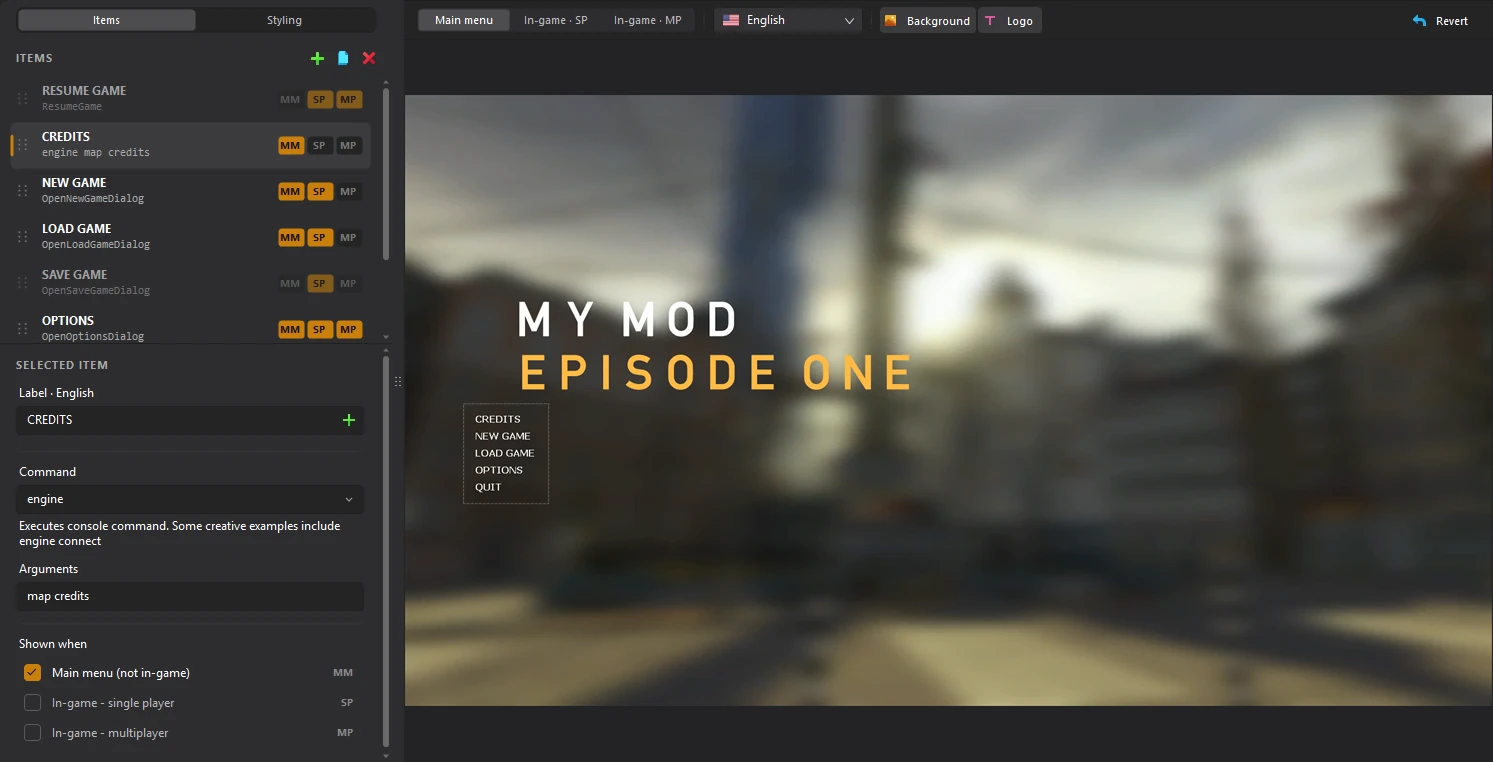
5. Choose when it shows
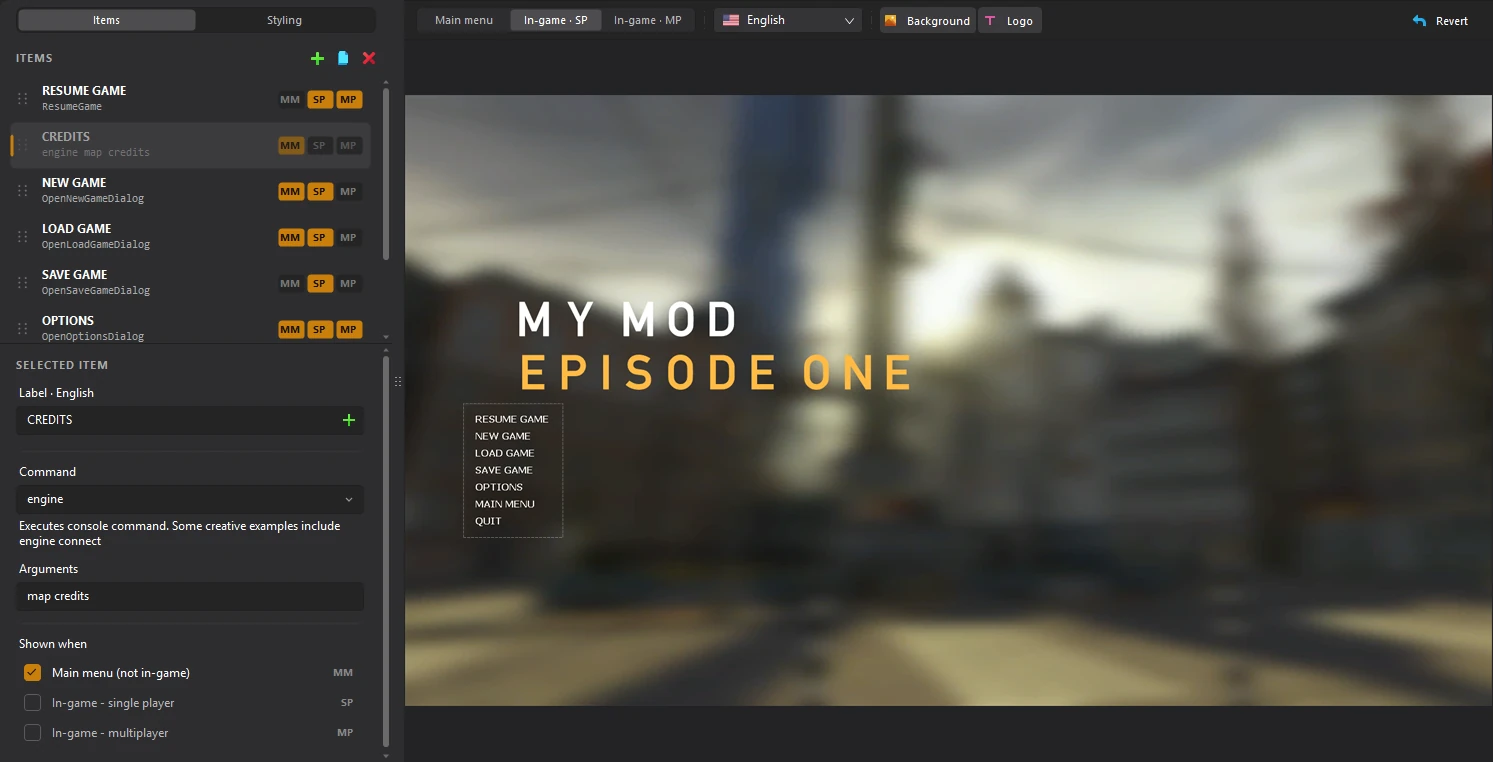
Under Shown when, tick where the item appears: Main menu (not in-game), In-game - single player or In-game - multiplayer. RESUME GAME, for example, only makes sense during a game.
Use Main menu, In-game · SP and In-game · MP above the preview to see each menu.
6. Style the items (optional)
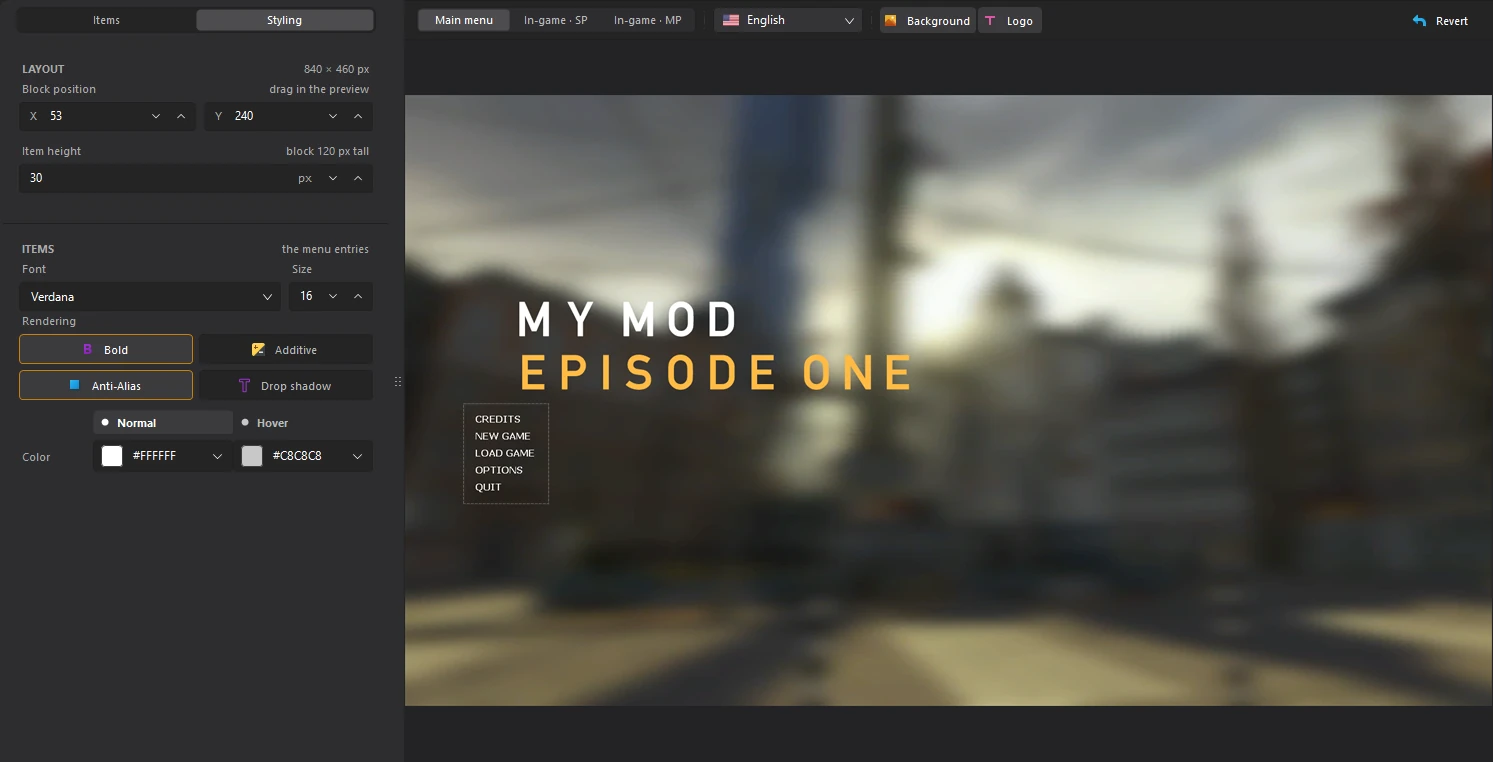
Click Styling at the top of the list. LAYOUT sets where the block of items sits (you can also drag it in the preview) and the height of each item. ITEMS sets the font, its size and rendering, and the colour of an item, Normal and when the pointer is over it (Hover).
7. Save
Click File > Save or press Ctrl+S. The Menu Items card on the Menu dashboard counts your new item.