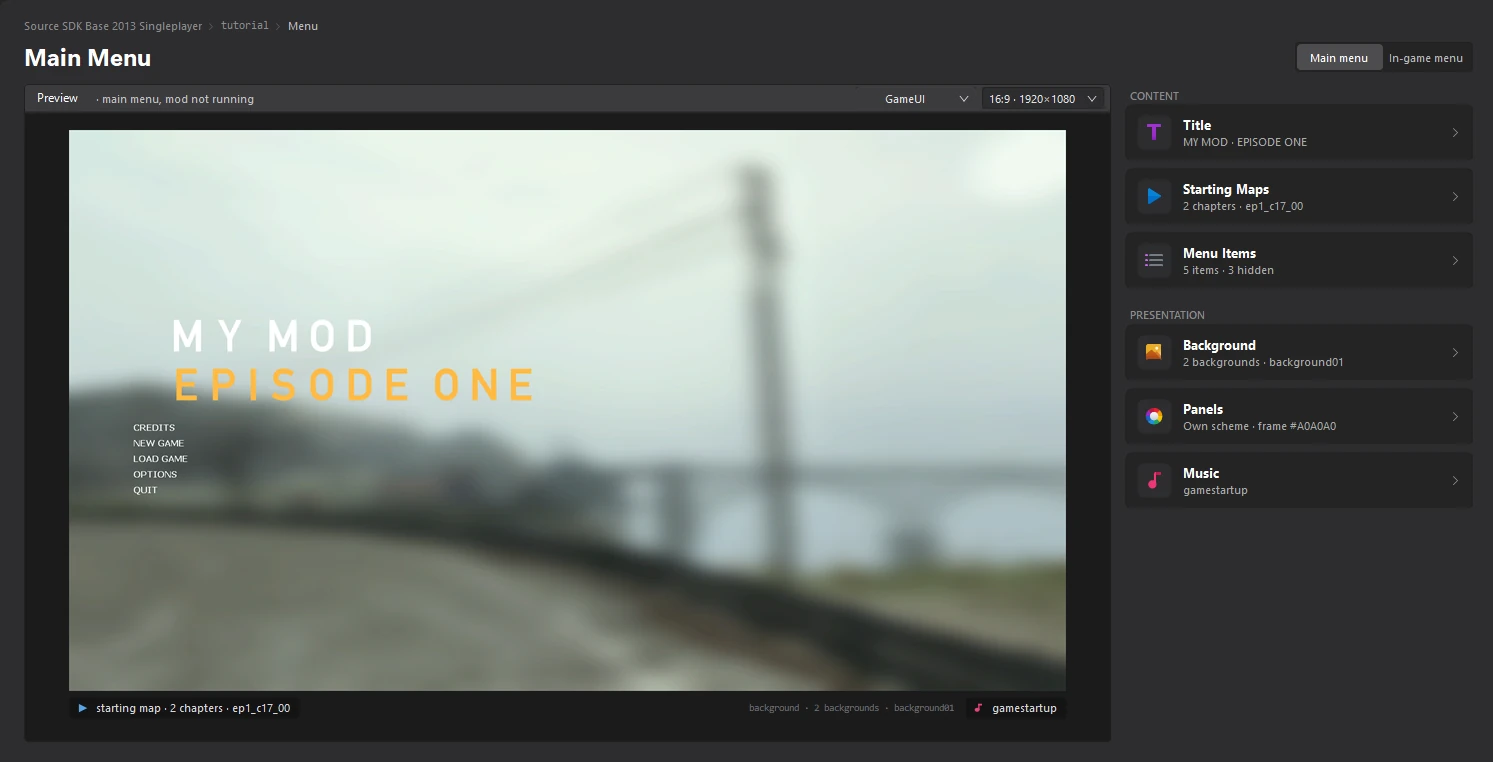
The Menu dashboard
Written for version 3.0. Some labels may have changed since.
The Menu dashboard shows your mod's main menu the way the game draws it, from your mod's own files. Next to the preview, one card per part of the menu tells you what it is set to and opens the editor that changes it.
1. Open the Menu dashboard
Click Menu in the sidebar on the left. The dashboard opens in its own tab.
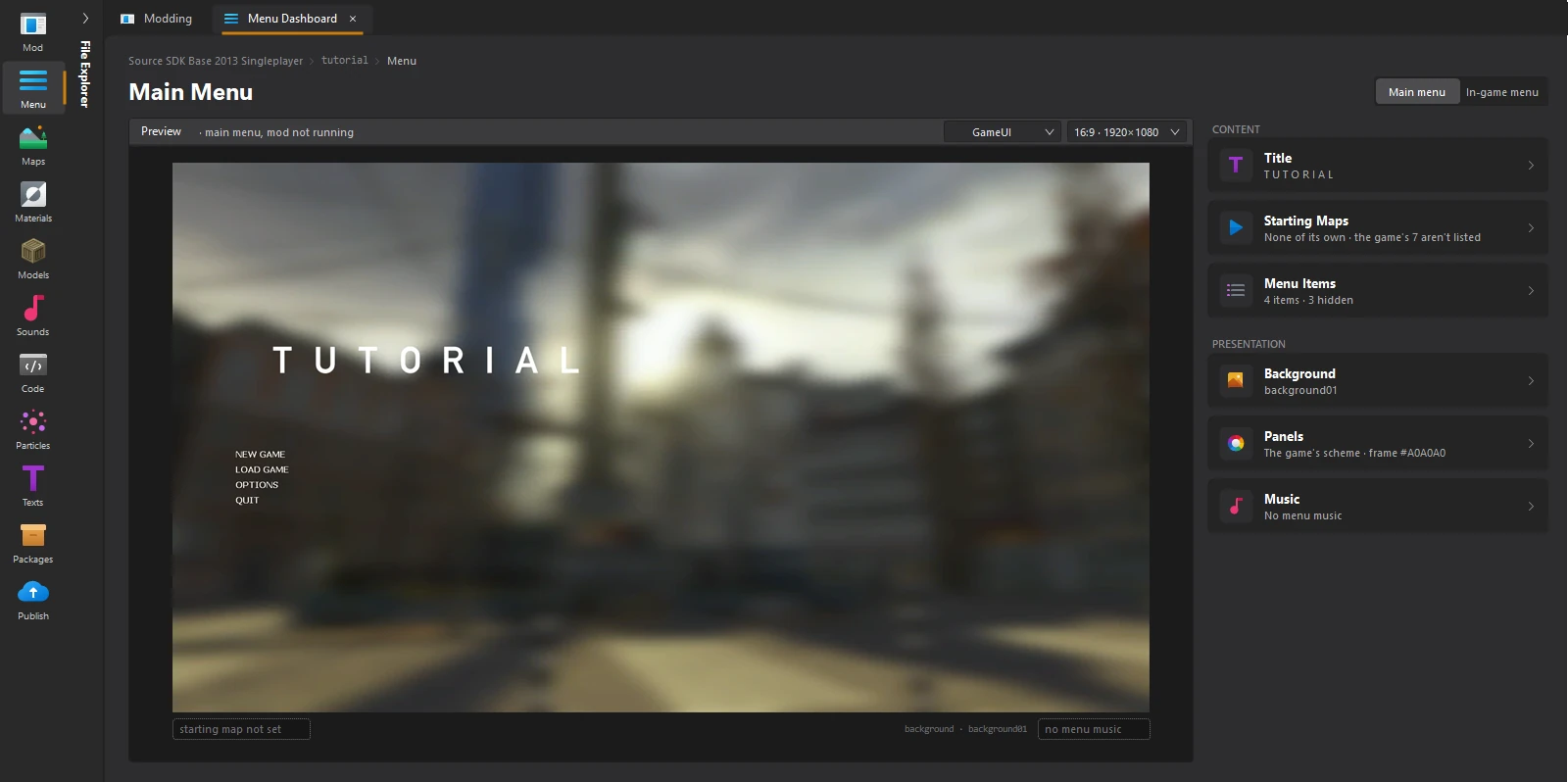
2. Read the preview
The preview is drawn from your mod's files: the title, the menu items, the background and the fonts are the ones the game will use. It updates every time you save in one of the menu editors.
- Main menu and In-game menu, at the top right, switch between the menu you see when the game starts and the one you see when you press Esc during a game. The in-game menu shows the items that only appear while playing, like RESUME GAME and SAVE GAME.
- 16:9 · 1920×1080 redraws the preview at 16:10 or 4:3, so you can check that nothing is cut off on other screens.
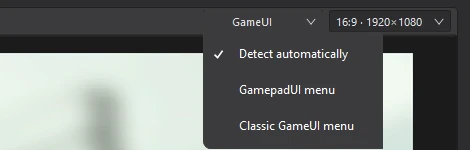
- GameUI says which menu your mod uses. Most mods use the classic GameUI menu. Mods with a Steam Deck menu use GamepadUI. The tool detects it from your mod's files; if it guessed wrong, pick GamepadUI menu or Classic GameUI menu here, and every editor follows.
Under the preview, small tags name the starting map, the background and the music.
3. Find the part you want to change
The cards on the right are grouped in CONTENT (what the menu says and does) and PRESENTATION (how it looks and sounds). Each card shows its current value, like the title text or the number of menu items.
Point at a card and the part of the menu it controls is outlined in the preview.
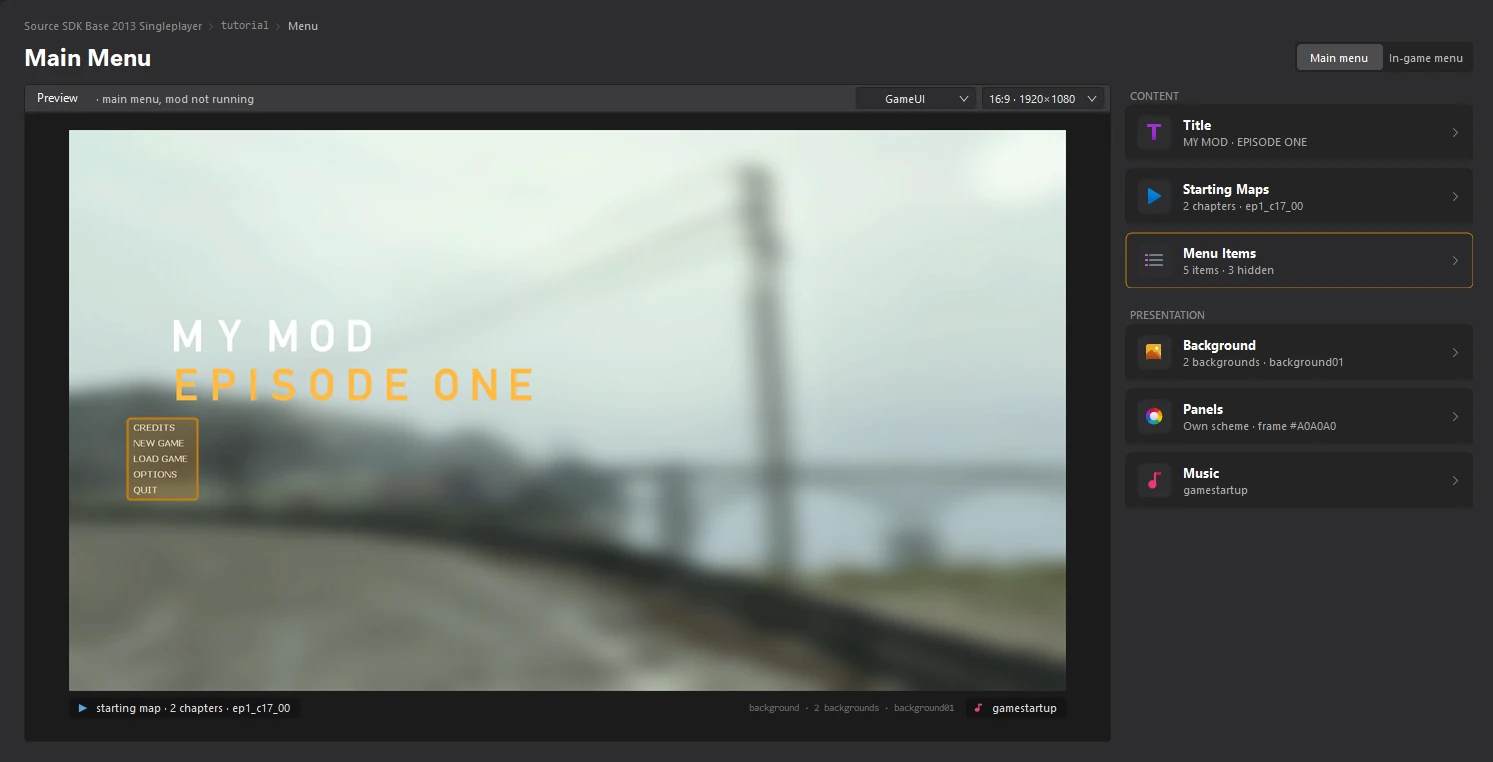
| Title | The title text and the logo. See Customize the title. |
|---|---|
| Starting Maps | The chapters of the New Game dialog. See Add chapters. |
| Menu Items | The entries of the menu, what they do and when they show. See Edit the menu items. |
| Background | The picture behind the menu. See Change the menu background. |
| Panels | The colours and fonts of the dialogs, like Options. See Theme the menu panels. |
| Music | The music that plays on the main menu. See Add menu music. |
4. Open an editor
Click a card. Its editor opens in a new tab, next to the dashboard. Make your changes, then click File > Save or press Ctrl+S. When you go back to the Menu Dashboard tab, the preview and the card show what you saved.