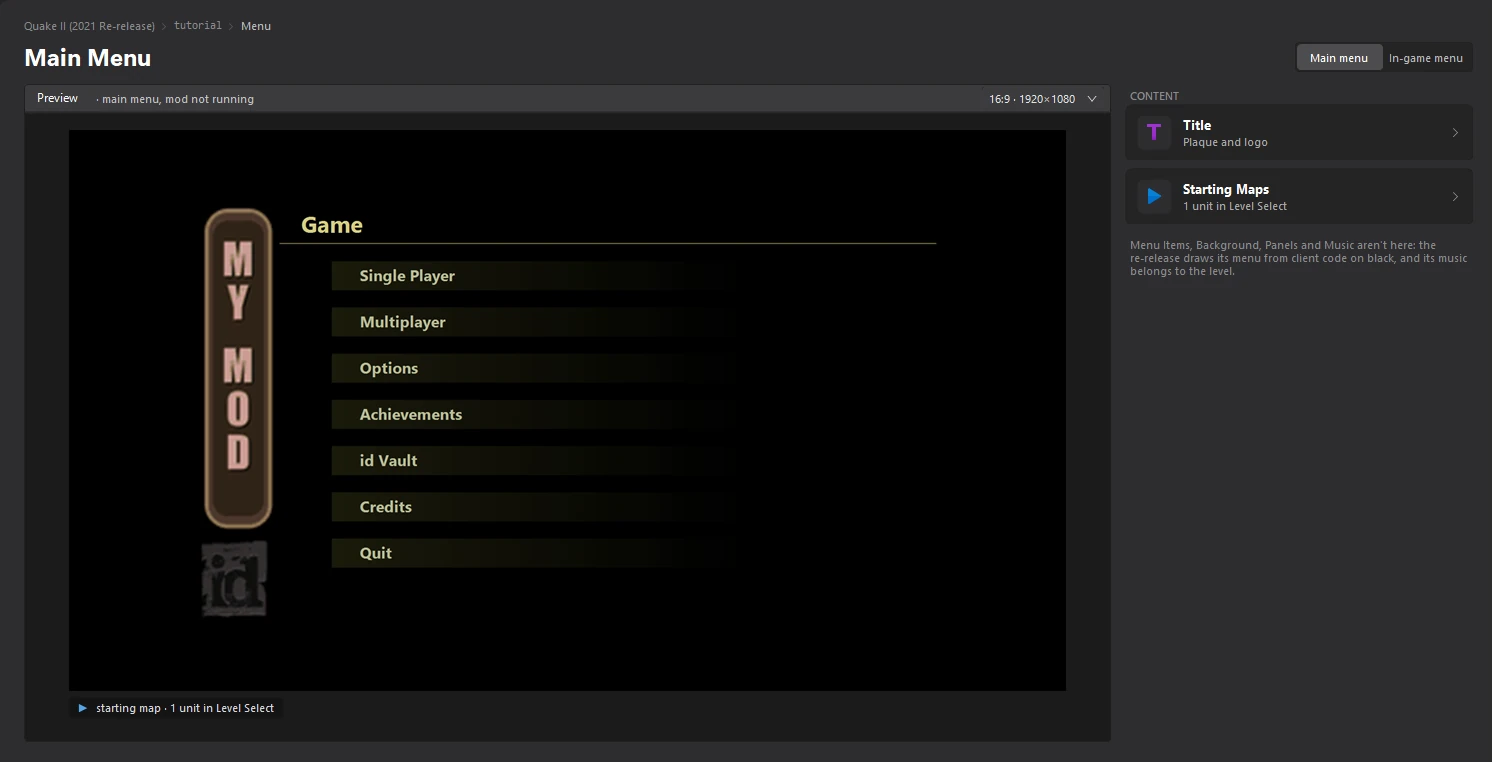
The Menu dashboard
Written for version 3.0. Some labels may have changed since.
The Menu dashboard shows your mod's main menu the way Quake II draws it. Quake II builds its menu in code, so a mod can change less of it than in Source or GoldSrc: the plaque and logo beside the menu, and what New Game and Level Select start.
1. Open the Menu dashboard
Click Menu in the sidebar on the left. The dashboard opens in its own tab.
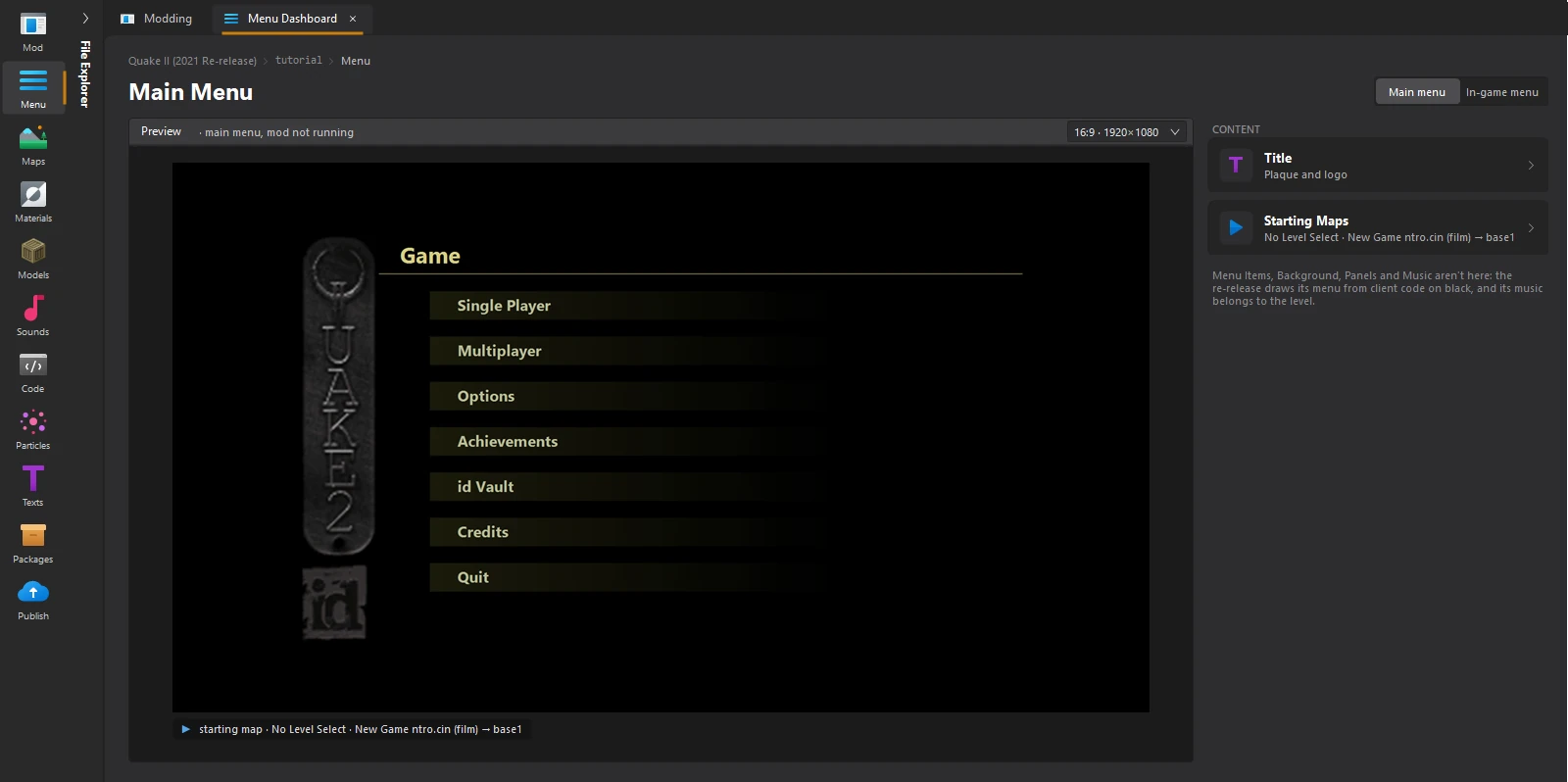
2. Read the preview
The preview is drawn with your mod's plaque and logo, the way the game draws the menu. It updates every time you save in one of the menu editors.
- Main menu and In-game menu, at the top right, switch between the menu you see when the game starts and the one you see when you press Esc during a game.
- 16:9 · 1920×1080 redraws the preview at 16:10 or 4:3.
Under the preview, a tag says what New Game starts and how many units your Level Select lists.
3. Find the part you want to change
Point at a card and the part of the menu it controls is outlined in the preview.
| Title | The plaque and the id logo beside the menu. See Change the menu plaque. |
|---|---|
| Starting Maps | The units of Level Select and the maps New Game plays. See Set up Level Select and New Game. |
4. Open an editor
Click a card. Its editor opens in a new tab, next to the dashboard. Make your changes, then click File > Save or press Ctrl+S. When you go back to the Menu Dashboard tab, the preview and the card show what you saved.